
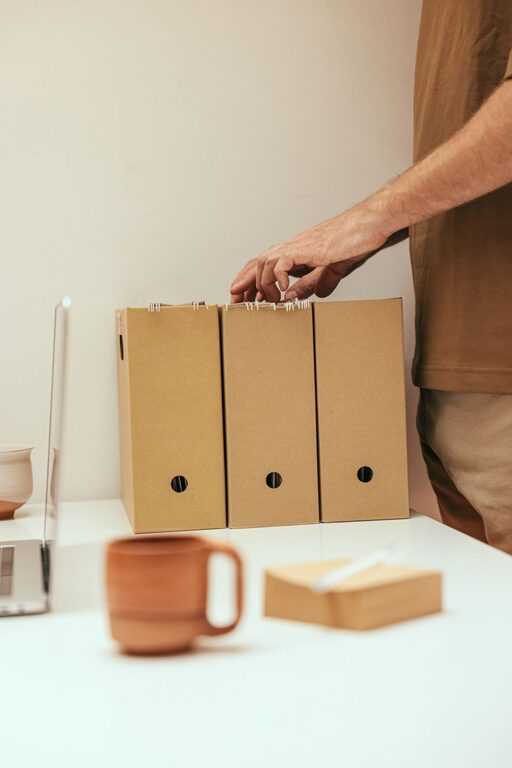
Keeping your computer files organized might seem like a daunting task, but with some simple strategies, you can maintain a tidy digital workspace. Organized files not only save you time but also reduce stress and help protect your important data. In this post, we’ll share practical tips to help you organize files on your computer effectively, whether you’re a beginner or looking to improve your current system.
Why Organizing Files Matters
Before diving into the tips, it’s important to understand why file organization is beneficial:
– Easy Access: Quickly locate documents or media without wasting time searching.
– Improved Productivity: Spend more time working and less time managing clutter.
– Better Backup and Security: Organized files are easier to back up and keep safe.
– Reduced Risk of Data Loss: Avoid accidental deletion or overwriting.
With these benefits in mind, let’s explore how you can create an organized file system.
1. Start with a Clear Folder Structure
A logical folder hierarchy is the foundation of a tidy computer.
Plan Your Main Categories
Think about the types of files you have and group them into broad categories like:
– Work
– Personal
– Photos
– Music
– Projects
Use Subfolders for Details
Inside each main folder, create subfolders to narrow down content. For example, under “Work,” you might have:
– Reports
– Presentations
– Contracts
This approach keeps your files grouped contextually and easy to browse.
2. Name Your Files Consistently
Meaningful file names help you find files without opening them.
Tips for Naming Files
– Be Descriptive: Include important details like date, project name, or version.
– Use Dates in a Standard Format: For example, YYYY-MM-DD ensures files sort chronologically.
– Avoid Spaces and Special Characters: Use underscores (_) or dashes (-) instead.
– Keep It Short but Clear: Long names can be harder to read.
Example of a good file name: `2024-05-10_ProjectProposal_v2.pdf`
3. Regularly Declutter and Delete Unneeded Files
Over time, unnecessary files accumulate, making your system cluttered.
Schedule Cleanup Sessions
Set a calendar reminder every month or quarter to review and delete:
– Duplicate files
– Outdated versions
– Temporary or downloaded files you no longer need
Cleaning up regularly keeps your system running smoothly.
4. Use Cloud Storage and Backups
Backing up your files protects against data loss.
Choose a Cloud Service
Popular options include Google Drive, Dropbox, or OneDrive. Using cloud storage offers:
– Automatic syncing across devices
– Easy sharing
– Extra storage space
Maintain Local Backups
Complement cloud storage with an external hard drive or backup software. This two-tier approach ensures your files are safe from hardware failure or accidental deletion.
5. Utilize File Tags and Metadata
Many operating systems allow you to add tags or labels to files for easier searching.
How to Use Tags
– Assign tags based on project, priority, or file type.
– Use consistent tag names for better organization.
– Combine tagging with folders for flexible file management.
Tags provide an alternative way to find files without digging through folders.
6. Take Advantage of Search and Sorting Features
Modern computers offer powerful tools to help locate and organize files quickly.
Tips for Efficient Searching
– Use keywords from file names or contents.
– Filter by file type, date, or size.
– Save frequent searches for quick access.
Sorting files by date, name, or type can also help you identify what needs attention or archiving.
7. Automate Where Possible
Automation saves time and reduces manual errors.
Consider These Options
– Use software to automatically sort downloaded files into folders.
– Set up scripts for regular backups.
– Employ file naming tools or batch renaming utilities.
Automation tools can keep your file system organized with minimal effort.
8. Create a Personal File Organization System That Works for You
There’s no one-size-fits-all method. Your system should match your workflow and preferences.
Tips to Personalize Your Setup
– Experiment with different folder structures.
– Use color-coding if your system supports it.
– Keep frequently used folders easily accessible through shortcuts or favorites.
As you develop your system, stay consistent and adjust when necessary.
Conclusion
Organizing files on your computer doesn’t have to be overwhelming. By planning your folder structure, naming files clearly, decluttering regularly, and using backups and automation, you’ll create an efficient digital environment. Start small, stay consistent, and enjoy the benefits of a well-organized file system that saves you time and reduces stress. Happy organizing!